1. Introdución
The THINKCAR THINKSCAN 672 is an advanced automotive diagnostic scan tool designed for comprehensive vehicle analysis and maintenance. It features a robust Android 10 operating system, a 7-inch touchscreen display, and powerful diagnostic capabilities. This device is equipped with a TES102 Endoscope Camera, allowing for visual inspection of hard-to-reach areas within the vehicle. The THINKSCAN 672 supports full system diagnostics, bidirectional control, and over 28 special service functions, making it an essential tool for automotive professionals and enthusiasts.

2. Configuración
2.1 Desembalaxe e compoñentes
Ao abrir o paquete, asegúrese de que estean presentes todos os compoñentes:
- THINKSCAN 672 Diagnostic Scan Tool
- TES102 Endoscope Camera
- Cable de diagnóstico OBD2
- Cable de carga USB tipo C
- Adaptador de alimentación
- Manual de usuario (este documento)
- Estuche de almacenamento
2.2 Conexión ao vehículo
- Localiza o porto OBD2 do vehículo, que normalmente se atopa debaixo do taboleiro no lado do condutor.
- Connect the OBD2 diagnostic cable to the THINKSCAN 672 device.
- Plug the other end of the OBD2 diagnostic cable into the vehicle's OBD2 port.
2.3 Acendido e configuración inicial
- Once connected to the vehicle, the THINKSCAN 672 will automatically power on, drawing power from the vehicle's OBD2 port. The internal battery will also charge during this time.
- Follow the on-screen prompts to select your preferred language, time zone, and other initial settings.
- Connect the device to a Wi-Fi network to ensure access to updates and online services.
3. Instrucións de funcionamento
3.1 AutoSearch (VIN Scan)
The AutoSearch function automatically identifies the vehicle's Vehicle Identification Number (VIN), brand, model, and year, providing quick access to the vehicle's diagnostic system.
- From the main menu, tap on the 'AutoSearch' icon.
- The device will perform a VIN scan. Please wait for the process to complete.
- Once identified, you will be presented with options for Health Report, System Selection, or Vehicle Information.

3.2 Informe de saúde
The Health Report performs a full system scan to detect and display all Diagnostic Trouble Codes (DTCs) present in the vehicle's modules.
- After AutoSearch, select 'Health Report'.
- The device will scan all available systems and list any detected DTCs.
- Podes view details of each DTC, clear all DTCs (only after repairs are made), or generate a report.
3.3 Selección do sistema
For targeted diagnostics, you can manually select specific vehicle systems (e.g., Powertrain, Chassis, Body) to scan.
- From the main menu or after AutoSearch, select 'System Selection'.
- Choose the desired system (e.g., 'Powertrain', 'Chassis', 'Body').
- Within the selected system, you can perform actions such as 'Read Fault Code', 'Clear Fault Memory', 'Read Freeze Frame', 'Read Data Stream', or 'Actuation Test'.
3.4 Fluxo de datos en directo
Monitor real-time data parameters from various sensors and modules in numerical or graphical format.
- Navigate to a specific system (e.g., Engine Control Module) and select 'Read Data Stream'.
- Select the data parameters you wish to monitor. You can select up to 4 parameters to display simultaneously.
- View the data in numerical ('Value') or graphical ('Graph') format. The graphical display allows for easy visualization of parameter changes over time.
- You can record the data, generate a report, or save a sample for later analysis.
3.5 Actuation Test (Bidirectional Control)
Perform active tests on various vehicle components to verify their functionality.
- Navigate to a specific system and select 'Actuation Test'.
- Choose the component you wish to test (e.g., fuel injectors, cooling fan, ABS pump).
- Siga as instrucións en pantalla para activar e observar a resposta do compoñente.

4. Maintenance Functions (28+ Resets)
The THINKSCAN 672 offers over 28 special service functions for various maintenance tasks. These functions allow for resetting, relearning, or calibrating specific vehicle systems.

4.1 Common Reset Functions
- Reinicio do aceite: Restablece o sistema de vida útil do aceite do motor despois dun cambio de aceite.
- EPB (Brake-pad Reset): Helps replace and reset the brake pad.
- SAS (Steering Angle Reset): Restablece o sensor do ángulo da dirección.
- BMS (Battery Matching): Rexistra a nova batería despois da substitución.
- DPF (DPF Regeneration): Performs regeneration for diesel particulate filters.
- Sangrado do ABS: Bleeds the ABS system to remove air.
- IMMO (Anti-theft/Key Matching): Disables lost keys and adds new keys (for cars with easy IMMO system).
- Codificación do inxector: Codifica os novos números de inxectores na ECU.
- Restablecer TPMS: Restablece os sensores do sistema de monitorización da presión dos pneumáticos.
- ETS (Electronics Throttle Adaption): Inicializa os actuadores do acelerador ao estado predeterminado.
- Adaptación da EGR: Adapts the Exhaust Gas Recirculation valve.
- Reinicio da proporción aire/combustible: Sets or learns air/fuel ratio parameters.
For detailed instructions on each function, refer to the on-device tutorials or the user manual.
5 Solución de problemas
5.1 Consellos xerais para a resolución de problemas
- O dispositivo non se acende: Ensure the OBD2 cable is securely connected to both the device and the vehicle's OBD2 port. Check the vehicle's battery voltage.
- Erro de comunicación: Verify the vehicle's ignition is on. Ensure the OBD2 cable is not damaged. Try connecting to a different vehicle to rule out device issues.
- DTC non se borran: Ensure the underlying issue causing the DTCs has been resolved before attempting to clear them. Clearing codes without addressing the root cause will result in their immediate return.
- Slow Operation: Ensure the device software is up to date. A stable Wi-Fi connection is recommended for updates.
5.2 Remote Assistance & Feedback
If you encounter persistent issues or require technical support, the THINKSCAN 672 offers built-in support features:
- Comentarios: Submit diagnostic reports and feedback directly to the THINKCAR team for analysis and problem resolution.
- Asistencia remota: Get technical support through remote diagnostic tools.
6. Especificacións
| Característica | Descrición |
|---|---|
| Mostrar | 7-inch Touchscreen, 1024*600 Resolution |
| Sistema Operativo | Android 10 |
| Procesador | 2GB Cortex Quad-Core |
| Memoria | 2 GB de RAM, 32 GB de ROM |
| Conectividade | 2.4G/5G Wi-Fi, Type-C, Bluetooth |
| Batería | 3150mAh (Rechargeable via OBD2) |
| Compatibilidade de vehículos | 140+ car brands since 1996 (American, European, Asian). FCA AutoAuth compatible (2018+ Chrysler, Jeep, Dodge, Fiat). |
| Actualizacións | Actualizacións gratuítas de por vida |
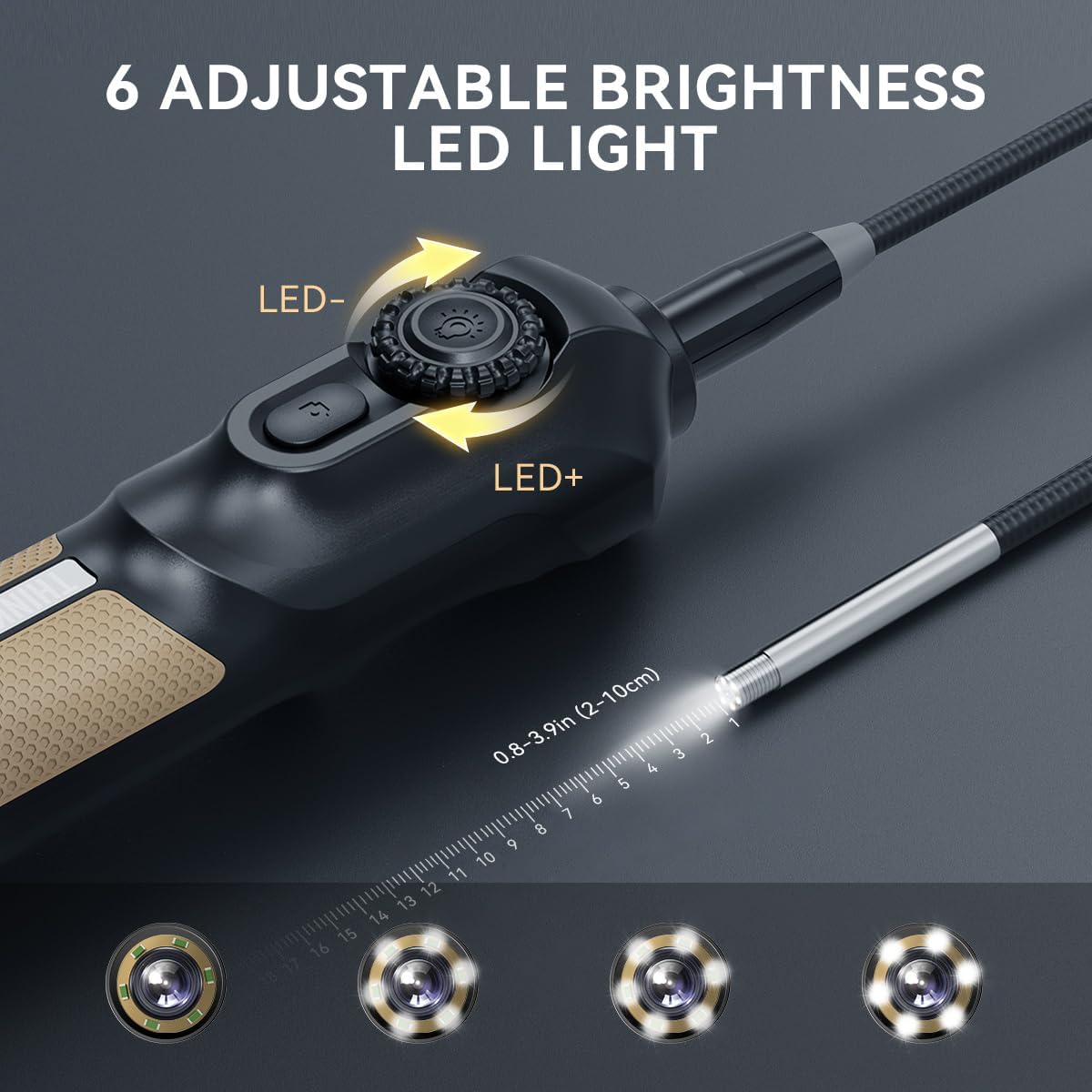
| Endoscope Camera (TES102) | 6 adjustable brightness LED lights, easy entry into hard-to-reach areas, one-click photo/video capture. |

7. Garantía e soporte
7.1 Información da garantía
Specific warranty details are not provided in the product data. Please refer to the product packaging or contact THINKCAR customer support for comprehensive warranty information.
7.2 Atención ao cliente
For any technical support, questions, or assistance, please contact THINKCAR customer service via:
- Servizo en liña: Available through the device's interface.
- Correo electrónico: support@mythinkcar.com
- Páxina de inicio: Refer to the device's homepage for additional resources.


