Introdución
Thank you for choosing the vretti PB821 Portable Thermal Printer. This compact and versatile device is designed for convenient, inkless printing from various devices, including smartphones, tablets, and laptops. Its portability makes it ideal for business, office, home, and travel use. This manual provides essential information on setting up, operating, maintaining, and troubleshooting your printer to ensure optimal performance.
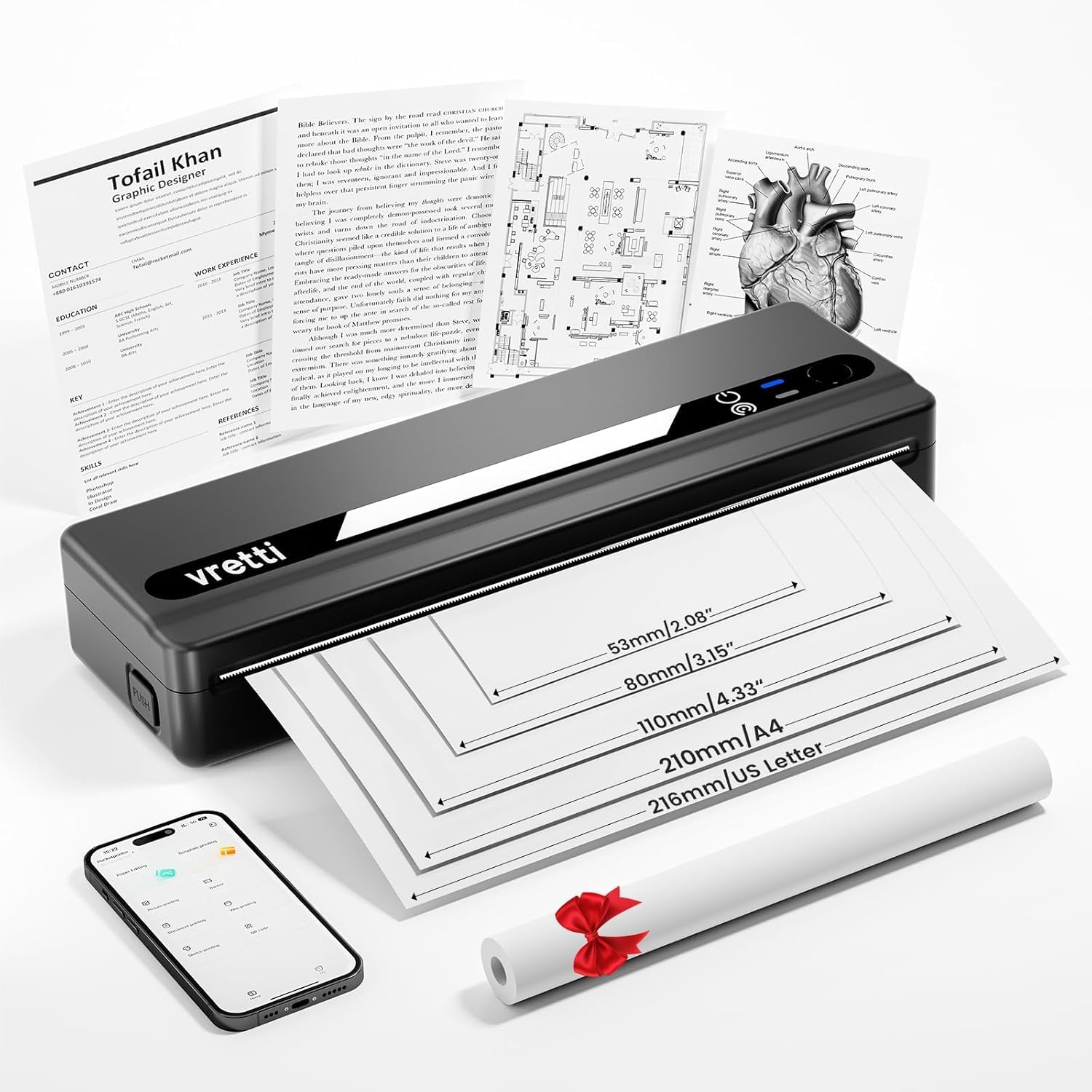
Image: The vretti PB821 Portable Thermal Printer, a sleek black device, ready for use.
Contido do paquete
Ao desembalar, comproba o contido do paquete para asegurarte de que estean presentes todos os elementos:
- vretti PB821 Portable Thermal Printer
- 1 rolo de papel térmico
- Cable de carga USB-C
- Manual de usuario
Produto rematadoview
Características clave
- Impresión sen fíos Bluetooth: Connects wirelessly to phones and tablets via the "XLifePro" app.
- Portátil e compacto: Deseño pequeno e lixeiro para un fácil transporte.
- Cost-effective Inkless Printing: Utilizes advanced thermal printing technology, eliminating the need for ink, toner, or ribbons.
- High-quality Printing: Delivers clear prints with a 203 DPI resolution.
- Batería de longa duración: Built-in 1500mAh rechargeable battery supports printing up to 223 A4 sheets on a full charge.
- Compatibilidade con papel de varios tamaños: Compatible with A5, A4, Letter, and 2-4 inch labels.
Opcións de conectividade

Image: The vretti PB821 printer supports both Bluetooth and USB connections for versatile use with Android, iOS, iPad, Windows, Mac OS, Linux, and Chromebook devices.
The vretti PB821 printer offers flexible connectivity, allowing you to print wirelessly via Bluetooth from mobile devices or directly via USB from computers. This ensures compatibility across various operating systems and devices.
Deseño portátil

Image: A visual comparison highlighting the compact and portable design of the vretti PB821 printer against a larger, traditional printer, emphasizing its convenience.
The PB821 is designed for maximum portability, making it easy to carry in a backpack or bag. Its compact form factor does not compromise on functionality, offering easy setup and smooth, inkless printing.
Configuración
1. Carga inicial
Before first use, fully charge the printer using the provided USB-C cable. Connect the cable to the printer's USB-C port and a compatible power adapter (not included) or computer USB port. The charging indicator light will show the charging status.

Image: Visual representation of the printer's 1500mAh battery capacity, USB-C charging, and its ability to print up to 223 A4 sheets on a single charge.
2. Cargar papel térmico
The vretti PB821 supports various thermal paper types. To load paper:
- Open the printer's paper cover.
- Insert the thermal paper with the printable side facing up. Ensure the paper is aligned correctly within the guides.
- Pecha a tapa do papel de forma segura.

Image: The vretti PB821 printer showcasing its compatibility with different thermal paper types, including folding thermal paper and roll paper, along with various paper sizes.
3. Connecting via Bluetooth (Mobile Devices)
To print wirelessly from your smartphone or tablet:
- Download the "XLifePro" app from the App Store (iOS) or Google Play Store (Android).
- Turn on the vretti PB821 printer. The Bluetooth indicator light will blink.
- Open the XLifePro app, navigate to the device connection settings, and select the PB821 printer from the list of available Bluetooth devices.
- Unha vez conectado, a luz indicadora de Bluetooth acenderase de forma fixa.

Image: Step-by-step guide on connecting the vretti PB821 printer via Bluetooth, including downloading the XLifePro app and pairing the device.
4. Connecting via USB (Computers)
To print from your Windows, Mac OS, or Linux computer:
- Download the appropriate printer driver from the official vretti websitio: vrettitech.com/pages/p83-support.
- Install the driver on your computer following the on-screen instructions.
- Connect the vretti PB821 printer to your computer using the provided USB-C cable.
- The computer should recognize the printer, and you can now select it as your printing device.

Image: Instructions for USB connection, detailing driver download from the vretti website and connecting the PB821 printer to a laptop.
Instrucións de funcionamento
Printing from Mobile Devices
Unha vez conectado por Bluetooth:
- Open the document, image, or file you wish to print within the XLifePro app. The app supports various formats including TXT, PDF, Excel, and Word documents.
- Selecciona a opción de impresión dentro da aplicación.
- Confirm print settings such as paper size and quantity.
- Iniciar a impresión.
Printing from Computers
Once connected via USB and drivers are installed:
- Abra o documento ou file queres imprimir no teu ordenador.
- Select the print option from your application (e.g., File > Imprimir).
- Choose "vretti PB821" from the list of available printers.
- Axusta a configuración de impresión segundo sexa necesario (por exemplo, tamaño do papel, orientación).
- Fai clic en "Imprimir".
Tipos e tamaños de papel compatibles
The PB821 printer is compatible with various thermal paper types and sizes, including:
- A4 (210 mm)
- Letter (8.5" x 11" / 216mm)
- A5 (148 mm)
- B5 (175mm)
- 2-inch (53mm) labels
- 3-inch (80mm) labels
- 4-inch (110mm) labels

Image: The vretti PB821 printer demonstrating its support for multiple paper sizes, including standard document sizes and various label sizes.
Using the XLifePro App
The XLifePro app provides additional functionalities beyond basic printing, including:
- Access to multiple templates for creative printing.
- Options for document printing, picture printing, and more.
- Customization features for various printing needs.

Image: Screenshots of the XLifePro app interface, illustrating its diverse range of templates and printing options.
Mantemento
Limpeza da impresora
To maintain print quality and prolong the printer's lifespan:
- Ensure the printer is turned off and disconnected from power before cleaning.
- Use un pano suave e sen pelusa lixeiramente dampened with water or isopropyl alcohol to gently wipe the print head and paper path.
- Non use produtos de limpeza ou disolventes abrasivos.
- Allow the printer to dry completely before turning it on.
Coidado da batería
Para optimizar a duración da batería:
- Evite descargar completamente a batería con frecuencia.
- Garde a impresora nun lugar fresco e seco cando non a use durante períodos prolongados.
- Charge the printer regularly, even if not in frequent use, to prevent deep discharge.
Resolución de problemas
| Problema | Causa posible | Solución |
|---|---|---|
| A impresora non se acende | Batería baixa; o botón de acendido non se premeu correctamente | Cargar a impresora; manter premido o botón de acendido durante uns segundos |
| Non se puido conectar a través de Bluetooth | Bluetooth off on device; Printer not in pairing mode; App issue | Ensure Bluetooth is enabled; Restart printer; Reinstall XLifePro app |
| Mala calidade de impresión | Low battery; Dirty print head; Incorrect paper type | Charge printer; Clean print head; Use recommended thermal paper |
| Atasco de papel | Carga incorrecta de papel; Papel danado | Turn off printer, carefully remove jammed paper, reload correctly; Use undamaged paper |
| Impresora non recoñecida polo ordenador | Missing/incorrect drivers; Faulty USB cable/port | Install/reinstall drivers from vretti website; Try a different USB cable/port |
Especificacións
| Característica | Detalle |
|---|---|
| Modelo | PB821 |
| Marca | vretti |
| Tecnoloxía de impresión | Térmica |
| Tecnoloxía de conectividade | Bluetooth, USB |
| Resolución de impresión máxima | 203 DPI (Black and White) |
| Medios impresos | Thermal Paper (plain) |
| Tamaños de folla compatibles | 2'', 3'', 4'', A4, 8.5''x 11'' US Letter |
| Capacidade máxima da folla de entrada | 30 follas |
| Capacidade da batería | 1500 mAh (ión de litio) |
| Dimensións do produto | 25.7 x 7 x 4.7 cm |
| Peso do elemento | 900 g |
| Impresión a dúas caras | Non |
| Cor da tinta | Negro |
Garantía e Soporte
The vretti PB821 Portable Thermal Printer comes with a standard manufacturer's warranty. For specific warranty details, technical support, or service inquiries, please refer to the warranty card included in your package or visit the official vretti websitio. Garde o recibo da compra como xustificante de compra para reclamacións de garantía.
Vídeo do produto
Video: An official product video demonstrating the features and usage of the vretti PB821 Portable Thermal Printer, including its compact design, wireless connectivity, and printing capabilities.


