1. Produto rematadoview
The VENTION 6-in-1 USB C Docking Station is a versatile adapter designed to expand the connectivity of your USB-C enabled laptop or device. It integrates multiple essential ports into a single, compact unit, making it ideal for mobile professionals and streamlined workstations.

Figure 1: VENTION 6-in-1 USB C Docking Station with various connected devices.
Características principais:
- Saída HDMI 4K: Connect to external displays for high-resolution video output.
- Entrega de potencia de 100 W (PD): Charge your host device while using the hub.
- Transferencia de datos USB 3.0: Two USB-A ports for high-speed peripheral connections.
- Lectores de tarxetas SD/TF: Direct access to photos and files das tarxetas de memoria.
- Deseño duradeiro: Constructed with an aluminum body for effective heat dissipation and portability.

Figura 2: detallada view of the VENTION 6-in-1 USB C Docking Station ports.
2. Instrucións de configuración
2.1 Contido do paquete
Antes de comezar, asegúrate de que estean presentes todos os elementos:
- VENTION 6-in-1 USB C Docking Station (Model THJHB)
- Integrated USB-C Host Cable
2.2 Conexión da estación de acoplamento
- Connect the integrated USB-C host cable from the docking station to a compatible USB-C port on your laptop or device. Ensure your device's USB-C port supports DisplayPort Alternate Mode (DP Alt Mode) for video output and Power Delivery for charging.
- For Power Delivery (PD) charging, connect your laptop's original USB-C power adapter to the USB-C PD IN port on the docking station. This allows the hub to pass power through to your host device while providing power to connected peripherals.
- The docking station is plug-and-play and typically does not require driver installation for basic functionality.

Figure 3: Connecting the docking station for 100W Power Delivery.
2.3 Compatibilidade
The VENTION 6-in-1 USB C Docking Station is widely compatible with various operating systems and devices:
- Sistemas operativos: Windows, Mac OS, iPad OS, Chrome OS, Android.
- Dispositivos compatibles: MacBook Air, MacBook Pro, iMac, Mac mini, iPad Pro, iPad Air, iPad, iPad mini, Galaxy Tab, Surface Pro, Samsung S22/S21, OnePlus 11, Steam Deck, and other USB-C devices that support DP Alt Mode.
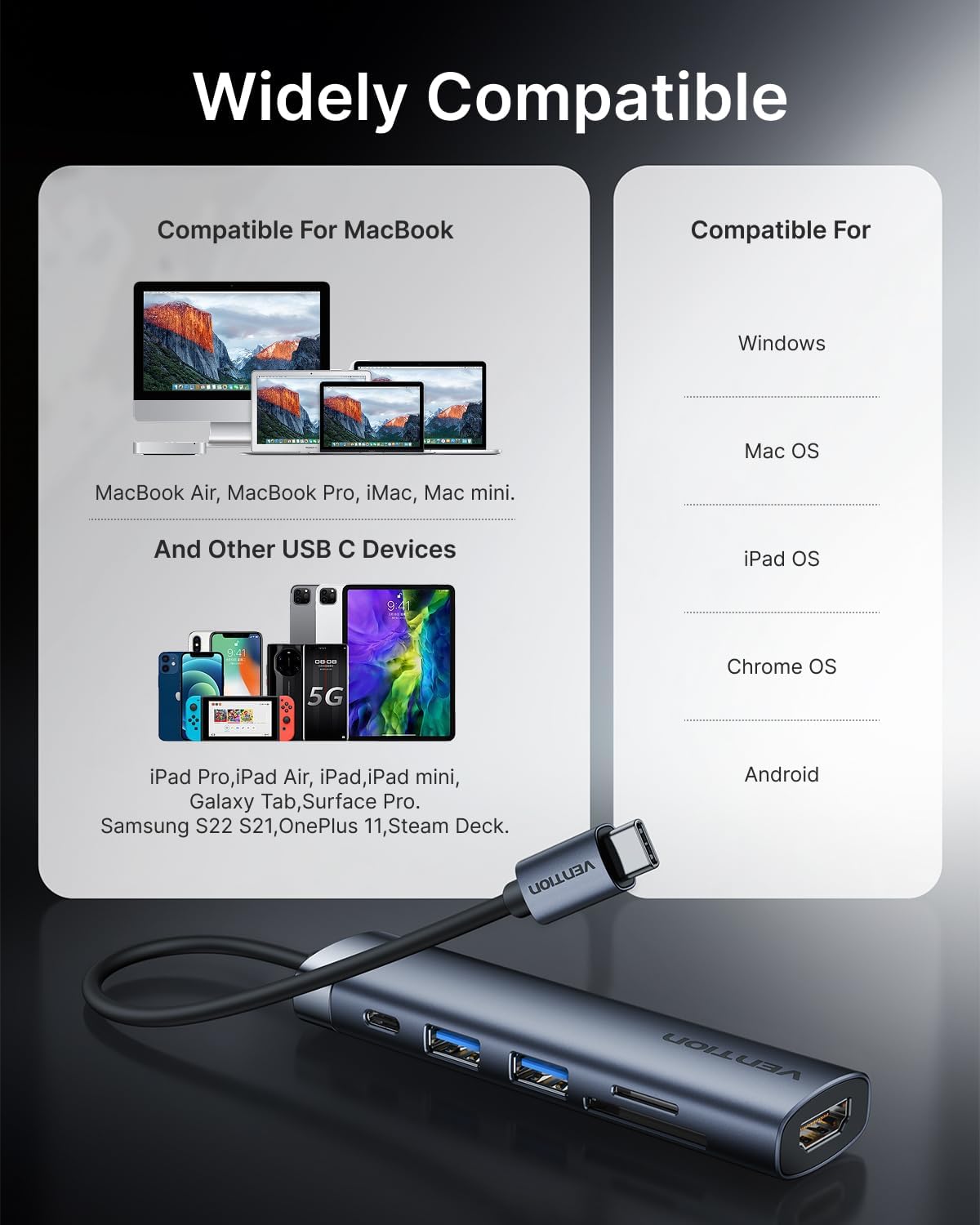
Figura 4: Compatibilidade sobreview for the docking station.
Importante: For full functionality, especially video output and Power Delivery, ensure your host device's USB-C port supports DisplayPort Alternate Mode (DP Alt Mode) and Power Delivery. Refer to your device's specifications or user manual.
3. Funcionamento da estación de acoplamento
Saída de vídeo HDMI 3.1
Connect an HDMI cable from the docking station's HDMI port to your external monitor, TV, or projector. The hub supports resolutions up to 4K at 30Hz.
- Modo espello: Duplicate your laptop's screen on the external display.
- Modo de extensión: Amplía o escritorio a través de varias pantallas para aumentar o espazo de traballo.
Adjust display settings through your operating system's display preferences.
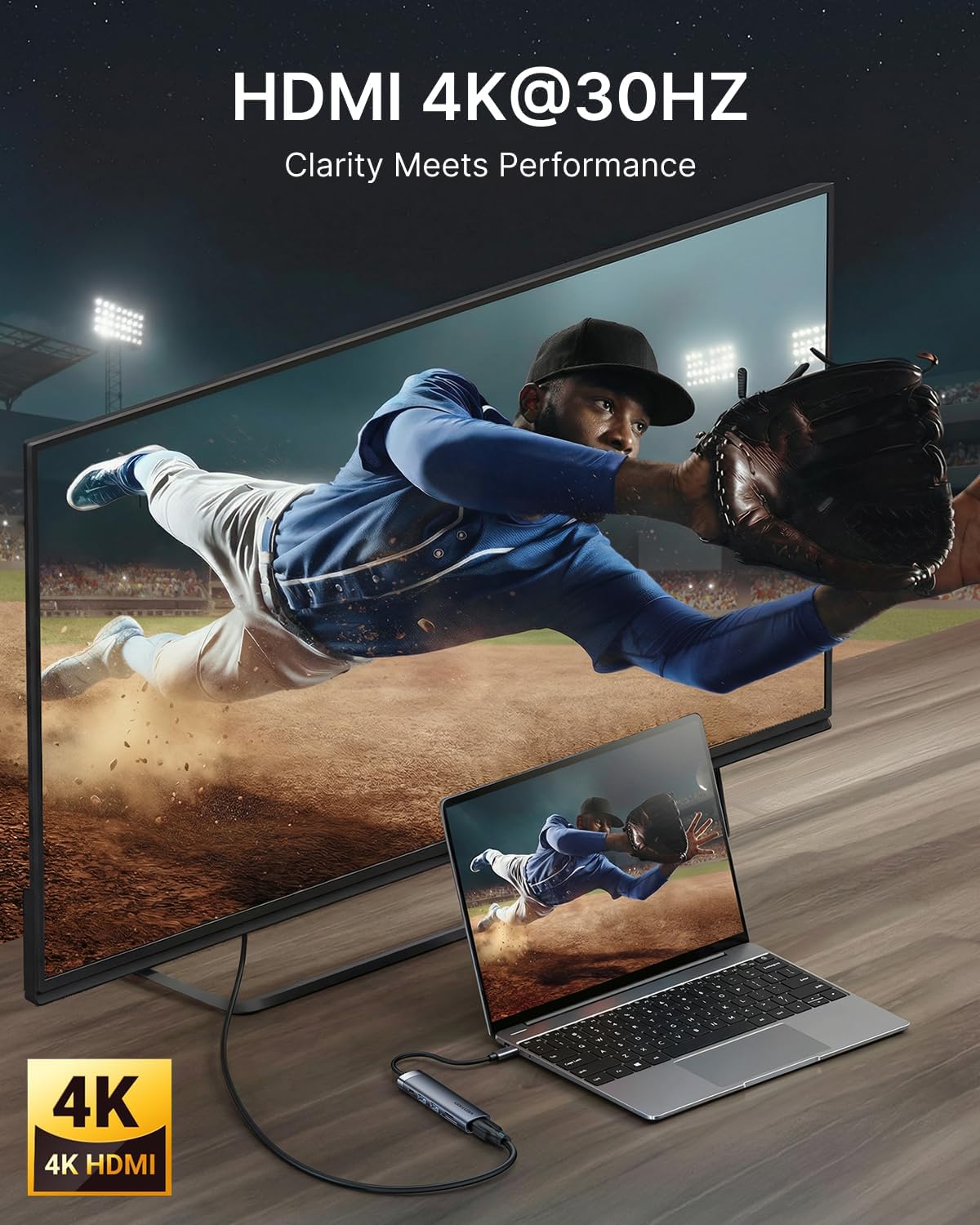
Figure 5: 4K HDMI output connection.
3.2 Transferencia de datos USB
The docking station features two USB 3.0 ports, offering data transfer speeds up to 5Gbps. These ports are suitable for connecting a variety of USB peripherals:
- Discos duros externos
- Unidades flash USB
- Teclados e ratos
- Printers and other USB-enabled accessories

Figure 6: USB 3.0 ports for high-speed data transfer.
Lector de tarxetas SD/TF de 3.3"
Insert your SD or microSD (TF) card into the corresponding slot for quick access to your media files. The card readers support various card types and offer fast data transfer speeds (up to 104MB/s).

Figure 7: Using the integrated SD and TF card readers.
4. Mantemento
4.1 Limpeza
To maintain optimal performance and appearance, clean the docking station regularly:
- Disconnect the device from all power sources and host devices before cleaning.
- Use un pano suave, seco e sen fiapos para limpar o exterior.
- Evita o uso de produtos químicos agresivos, limpadores abrasivos ou solventes, xa que poden danar o acabado.
- For ports, use compressed air to gently remove dust and debris.
4.2 Almacenamento e manipulación
Proper storage and handling will extend the life of your docking station:
- Garde o dispositivo nun lugar fresco e seco, lonxe da luz solar directa e de temperaturas extremas.
- Avoid bending or twisting the integrated USB-C cable excessively.
- The aluminum body is designed for heat dissipation; ensure adequate airflow around the device during operation.
5 Solución de problemas
If you encounter issues with your VENTION 6-in-1 USB C Docking Station, refer to the following common problems and solutions:
5.1 Sen visualización no monitor externo
- Comproba as conexións dos cables: Asegúrate de que o cable HDMI estea conectado correctamente tanto á estación de acoplamento como ao monitor.
- Verificar o porto USB-C: Confirm that your laptop's USB-C port supports DisplayPort Alternate Mode (DP Alt Mode). Not all USB-C ports support video output.
- Entrada de monitor: Select the correct HDMI input source on your monitor.
- Configuración de resolución: Try lowering the display resolution on your laptop to see if the monitor detects the signal.
- Reiniciar dispositivos: Disconnect and reconnect the docking station, then restart your laptop and monitor.
5.2 Dispositivos USB non recoñecidos
- Volver conectar: Unplug and re-plug the USB device into the docking station.
- Test Another Port: Try connecting the USB device to a different USB port on the docking station or directly to your laptop.
- Fonte de alimentación: If using power-hungry USB devices (e.g., external hard drives), ensure your laptop's power adapter is connected to the docking station's USB-C PD IN port.
- Actualizacións de controladores: Ensure your laptop's USB-C drivers are up to date.
5.3 Velocidades lentas de transferencia de datos
- Compatibilidade USB 3.0: Ensure both the connected device and your laptop's USB-C port support USB 3.0 or higher for optimal speeds.
- Interferencia: Avoid placing the docking station near sources of electromagnetic interference.
5.4 Charging Issues (PD)
- Adaptador de alimentación: Use your laptop's original power adapter or a certified USB-C PD charger with sufficient wattage (admite ata 100 W).
- Porto USB-C: Confirma que o porto USB-C do teu portátil é compatible con Power Delivery.
- Calidade do cable: Ensure the USB-C cable connecting your power adapter to the hub is rated for Power Delivery.
6. Especificacións
| Característica | Detalle |
|---|---|
| Dimensións do produto | 4.34 x 1.12 x 0.59 polgadas |
| Peso do elemento | 2.08 onzas |
| Número de modelo do artigo | THJHB |
| Marca | VENCIÓN |
| Cor | Gris |
| Taxa de transferencia de datos | 5 Gigabits Per Second (USB 3.0) |
| Material | Aluminio |
| Características especiais | Fast Data Transfer, Lightweight, Pass Through Charge, Plug and Play, Portable |
| Saída HDMI | 4K@30Hz |
| Entrada USB-C PD | Ata 100W |
| Lector de tarxetas | SD, MicroSD (TF) |
7. Garantía e soporte
For warranty information or technical support, please refer to the documentation included with your purchase or visit the official VENTION website. Contact details for customer service can typically be found on the product packaging or the manufacturer's support page.


