1. Introdución
The Zebra ZQ220 Plus is a versatile mobile thermal printer designed for on-the-go professionals. This portable device offers reliable, high-quality receipt and label printing capabilities, making it suitable for various applications including retail, hospitality, and field services. Featuring Bluetooth 5.0 connectivity and a durable design, the ZQ220 Plus ensures efficient operation in diverse working environments. Its thermal printing technology eliminates the need for ink or toner, simplifying maintenance.
2. Información de seguridade
- Read all instructions before operating the printer.
- Non expoña a impresora a temperaturas extremas, á luz solar directa nin a alta humidade.
- Use only Zebra-approved accessories and power sources.
- Avoid dropping the printer or subjecting it to severe impacts.
- Manteña a impresora lonxe de auga e outros líquidos.
- Non intente desmontar nin reparar a impresora vostede mesmo. Consulte persoal de servizo cualificado.
3. Contido do paquete
Verifica que todos os elementos estean presentes no paquete:
- Zebra ZQ220 Plus Mobile Thermal Printer
- Batería recargable
- Cable de carga USB
- Guía de inicio rápido
- Sample Thermal Paper Roll
4. Produto rematadoview
Familiarize yourself with the components of your ZQ220 Plus printer.

Figura 4.1: Fronte View of the ZQ220 Plus Printer
This image displays the front of the ZQ220 Plus printer, highlighting its compact design. The top panel features an LCD display and three control buttons: Power, Settings, and Connectivity. The paper output slot is visible below the control panel.
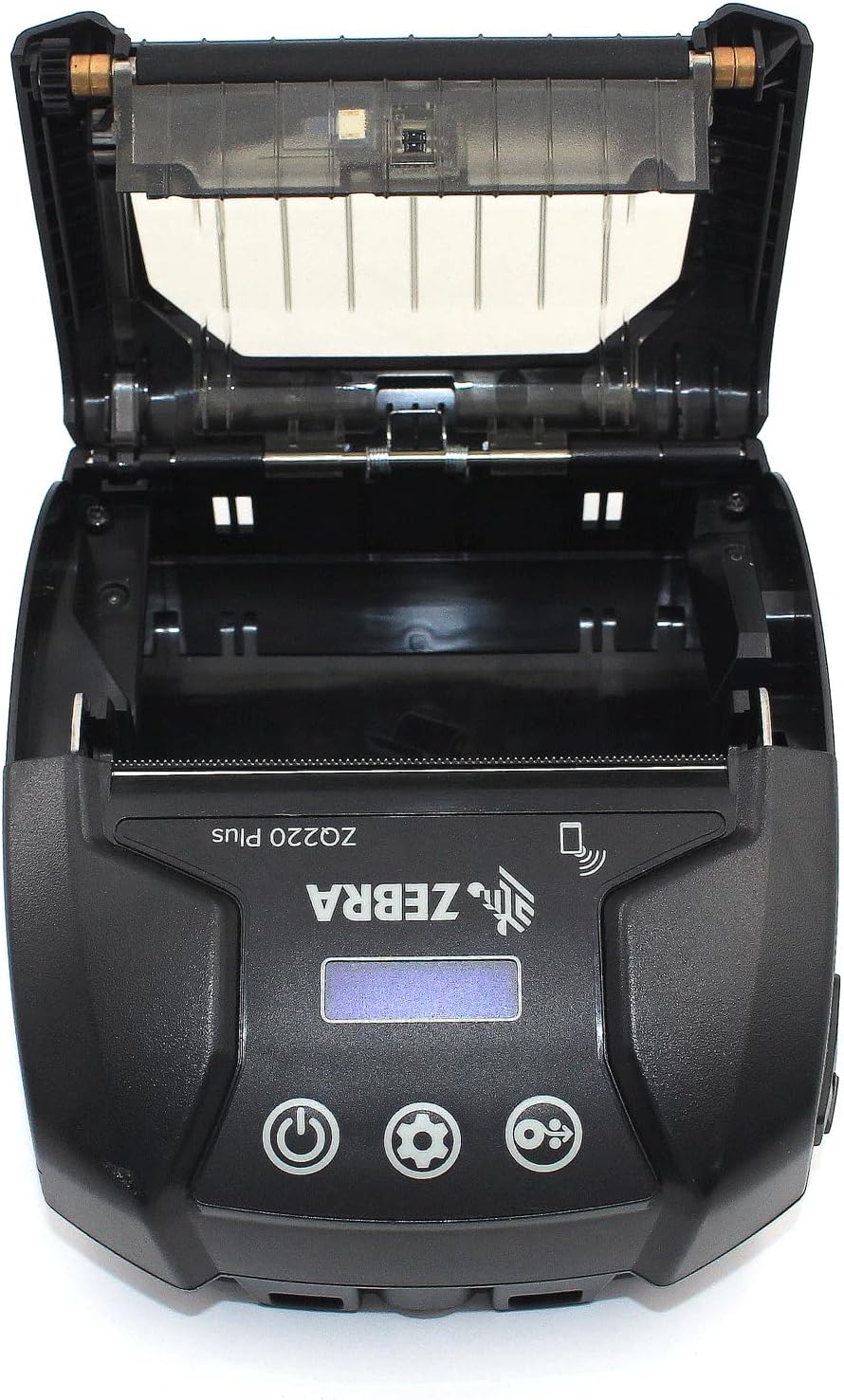
Figure 4.2: Media Compartment Open
This image shows the printer with its top cover open, providing access to the media compartment. The thermal printhead is visible, along with the spindle for loading paper rolls. This view is essential for understanding how to load printing media.

Figure 4.3: Media Roll Insertion
This image demonstrates the media loading process. The side view with the cover open clearly shows how a roll of thermal paper is placed into the printer's media bay, ensuring correct alignment for printing.
5. Configuración
5.1. Instalación da batería
- Asegúrese de que a impresora estea apagada.
- Locate the battery compartment cover on the back or bottom of the printer.
- Open the cover and insert the rechargeable battery, ensuring the contacts align correctly.
- Pecha a tapa do compartimento da batería de forma segura.
5.2. Carga de soportes de impresión
- Open the media compartment cover (refer to Figure 4.2).
- Place the thermal paper roll into the compartment with the leading edge feeding from the bottom of the roll.
- Pull a small amount of paper past the printhead.
- Close the media compartment cover firmly until it latches.
5.3. Acendido e carga iniciais
- Connect the USB charging cable to the printer and a power source (e.g., USB wall adapter, vehicle USB port).
- Allow the battery to fully charge before first use. The charging indicator light will show the status.
- Press and hold the Power button until the printer powers on. The LCD display will illuminate.
6. Funcionamento da impresora
6.1. Emparellamento Bluetooth
- Ensure the printer is powered on and within range of your host device (smartphone, tablet, etc.).
- On your host device, navigate to the Bluetooth settings and enable Bluetooth.
- Busca available devices. The printer will appear as 'ZQ220 Plus' or a similar identifier.
- Select the printer from the list to initiate pairing. If prompted, enter the default PIN (usually '0000' or '1234').
- Once paired, the Bluetooth icon on the printer's display will indicate a successful connection.
6.2. Impresión
- Ensure the printer is paired with your host device and has sufficient media loaded.
- Open your printing application (e.g., ZLabel Designer Mobile App for Android or iOS, or other compatible software).
- Select the ZQ220 Plus as your target printer within the application.
- Initiate the print command from your application. The printer will begin printing the document or label.
6.3. Carga USB
The ZQ220 Plus supports simple USB charging. Connect the printer to any standard USB power source using the provided USB cable. This allows for convenient charging in vehicles or from portable power banks.
7. Mantemento
7.1. Limpeza da impresora
- Exterior: Limpe o exterior da impresora cun pano suave eamp pano. Non use produtos químicos agresivos ou produtos de limpeza abrasivos.
- Cabezal de impresión: Periodically clean the thermal printhead using a printhead cleaning pen or a cotton swab lightly dampened with isopropyl alcohol. Ensure the printer is off and cool before cleaning. Allow to dry completely before use.
- Rolo de placa: Clean the platen roller with a lint-free cloth dampened with isopropyl alcohol to remove paper dust or adhesive residue.
7.2. Almacenamento
When not in use for extended periods, store the printer in a cool, dry place, away from direct sunlight and extreme temperatures. Remove the battery if storing for several months to prevent discharge or damage.
8 Solución de problemas
| Problema | Causa posible | Solución |
|---|---|---|
| A impresora non se acende | Batería baixa ou esgotada Improperly installed battery | Cargue a batería Reinstale a batería correctamente |
| Sen saída de impresión | No paper loaded Papel cargado incorrectamente Printhead dirty or damaged | Load thermal paper Recargar o papel correctamente Limpar o cabezal de impresión |
| Mala calidade de impresión | Dirty printhead Batería baixa Tipo de medio incorrecto | Limpar o cabezal de impresión Cargue a batería Ensure correct thermal media is used |
| Non se pode conectar a través de Bluetooth | Bluetooth non activado no dispositivo Printer not in pairing mode Fóra de rango | Enable Bluetooth on host device Ensure printer is discoverable Move device closer to printer |
| Printer stops during operation | Batería baixa Atasco de papel Sobrequecemento | Cargue a batería Clear any paper jam Allow printer to cool down |
9. Especificacións
| Característica | Especificación |
|---|---|
| Nome do modelo | ZQ220 PLUS |
| Tecnoloxía de impresión | Térmica directa |
| Resolución de impresión | 203 DPI (puntos por polgada) |
| Velocidade máxima de impresión (monocromo) | 20 ppm |
| Supported Media Widths | 80 mm (3.14 in), 76.2 mm (3 in), 58 mm (2.28 in) |
| Conectividade | Bluetooth 5.0, USB |
| Capacidade da batería | 2500 mAh |
| Memoria | 8 MB |
| Clasificación de durabilidade | IP54 (resistance to dust and liquids) |
| Dimensións do produto (P x A x A) | 3.15" x 2.25" x 3" |
| Peso do elemento | 4 onzas (0.25 libras) |
| Compoñentes incluídos | Printer, Battery, USB Cable |
10. Garantía e soporte
10.1. Información da garantía
The Zebra ZQ220 Plus Mobile Thermal Printer comes with a Garantía limitada do fabricante. Please refer to the warranty card included with your product or visit the official Zebra websitio web para obter termos e condicións detallados relativos á cobertura, duración e procedementos de reclamacións.
10.2. Soporte técnico
For technical assistance, troubleshooting beyond this manual, or service inquiries, please contact Zebra customer support. Contact information can typically be found on the official Zebra websitio web ou na documentación do produto.